
Instagram recently started rolling out a new way of sharing photos for its users. Dubbed Instagram Instants, it lets you share ephemeral content on the platform, which automatically disappears once your friends and followers have seen it. The photos you post on Instagram Instants are shown to others in their inbox, and you can view the images posted by others in your inbox. It is designed to let you share images with minimal editing. However, the social media app lets you turn Instagram Instants off if you want to stop seeing them. The new feature works similarly to Snapchat, which also lets users share disappearing content.
If you are also wondering what the new Instagram Instants are, how exactly it works, what the features are, and how you can use them, here is everything you need to know about Meta’s new Instagram Instants.
What Is Instagram Instants?
The latest addition to the photo sharing platform’s list of features is Instagram Instants. The feature lets you “instantly” share disappearing photos with your friends or select close friends on the social media app. With the new tool, the platform is competing with Snapchat, which is primarily built for sharing ephemeral photos and videos. However, Instagram Instants does not allow you to share videos on Instants.
When you click an image, it is directly shared with the group of users you want to share it with. However, if you have inadvertently shared a photo on Instagram Instants, the app lets you immediately undo it, deleting the image instantly. Meta has also introduced a new standalone app for Instagram Instants, which offers the same functionality.
Instagram Instants Key Features
The Instagram Instants feature offers multiple features. You can add a caption to the photos you share. However, Meta says that the feature has been designed to allow you to only share images with “minimal edits”. Hence, you can not add additional filters to the images after clicking the photo.
You can also choose who you share the Instagram Instants with. The app gives you an option to either share it all your followers or a select group of “close friends” on the platform. After the images have been shared, they are shown as a single stack of photos, appearing within the recipient’s inbox. These images disappear once a user has seen it.
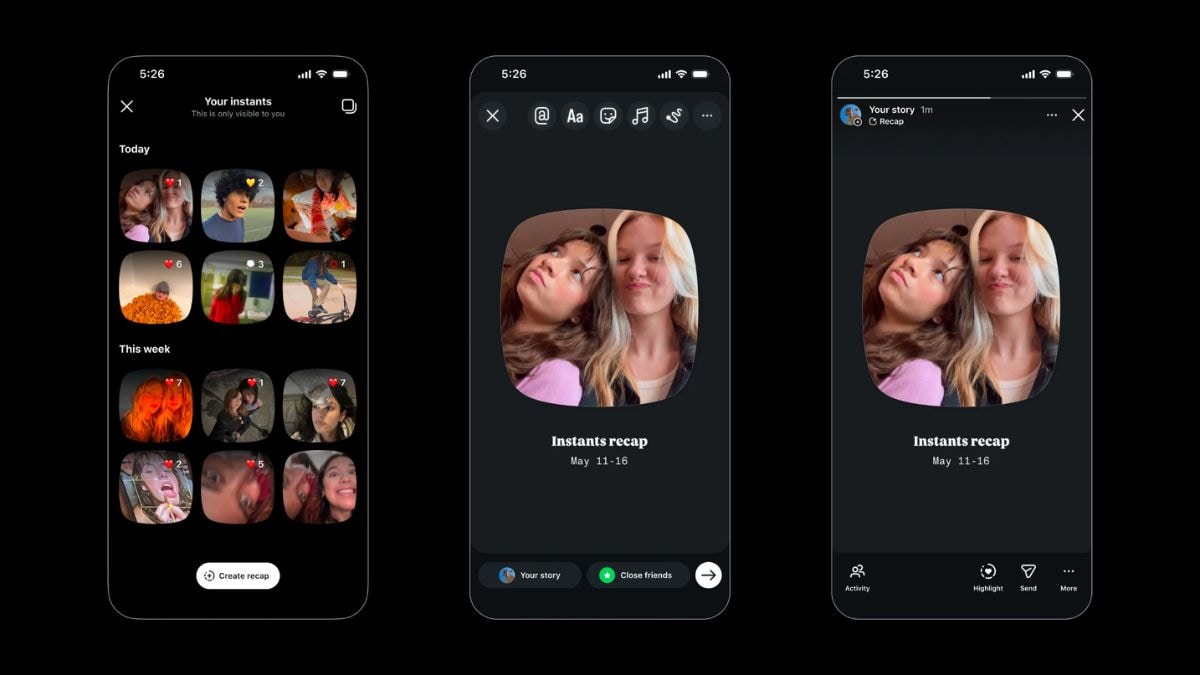
However, they can choose to either react to the Instants or reply to your photo directly from the page. To complement the new feature, the company has also introduced various tools, like shared Instants are saved privately in an archive for up to a year, which can be used to generate Instants recap for Instagram Stories. There is also an Undo option, which lets you immediately cancel the upload of an image. Moreover, you can hide Instagram Instants from appearing in your inbox from the Content Preferences menu.
How to Post Instagram Instants
- To post an Instagram Instants image, first open the Instagram app on your phone.
- Now, you must swipe to open your Instagram inbox or tap on the Messages button, appearing at the bottom of the screen.
- Then, click on the Plus sign in the bottom right corner of the page.
- Now, the New Instant page will display your camera feed.
- You can now click a new image to instantly post as an Instagram Instants.
- If you want to delete the image, you can go to the Your Instants section to remove it.
How to Create a Recap Using Instagram Instants
- To create a recap of all the Instagram Instants you have posted, first open the Instagram app on your phone.
- Then, swipe to open your Instagram inbox.
- Alternatively, you can tap on the Messages button, appearing at the bottom of the screen.
- Now, you must click on the Plus sign in the bottom right corner of the page.
- However, if you have any unseen Instagram Instants in your inbox, an image would appear instead of the Plus symbol.
- When you open the Instagram Instants page, your camera feed will open.
- Here, tap on the four square boxes in the top-right corner of the screen.
- Now, the Your Instants page will open.
- You can now tap on the Create recap button, appearing at the bottom after selecting the Instagram Instants you wish to add to the recap.
- The app gives you the option to share the Instants recap on your story directly from the page.
How to Turn Off Instagram Instants in the App
- If you want to stop seeing Instagram Instants in your inbox, open the Instagram app on your phone.
- Now, navigate to your profile page by either swiping left or clicking on your profile picture in the bottom right corner of the screen.
- Then, you must tap on the three horizontal lines in the top-right corner of your profile page.
- The Settings and activity page will open.
- Now, scroll down to the What you see section.
- Then, you must click on the Content preferences button.
- You can now tap on the Hide instants in inbox button to turn the feature off.
- You can also toggle Instagram Instants on by following the same steps.
FAQs
Can I stop Instagram Instants from appearing in my inbox?
Yes, you can turn off Instagram Instants from the mobile app to stop seeing disappearing images your friends post.
Is the Instagram Instants feature available in India?
Yes, the new Instagram Instants is currently live in India on both Android and iOS Instagram mobile apps.
Can I use the Instagram Instants for free?
Meta does not charge an additional fee for using the new Instagram Instants feature.