
Digital planners range from user-friendly to-do list apps like Todoist to customizable note-taking platforms like Notion. Teams with packed schedules may prefer detailed task planning in ClickUp, while visual planners such as monday.com make schedules and priorities easier to scan. Based on my hands-on testing, I selected seven digital planners that can help you organize your time and stay productive through the rest of 2026.
| ||||
| ||||
| ||||
| ||||
| ||||
| ||||
|
| Why you can trust TechRepublic |
| I’ve spent the past four years testing nearly 30 business productivity platforms, and some of them have become part of my workflow. Writing dozens of software guides taught me what organizations need from these productivity tools beyond the marketing pitch. I also build custom scoring rubrics for each review to ensure fairness and that selected platforms get evaluated on the same criteria.
|
 Marianne Sison
Todoist: Best for checklist-style planning

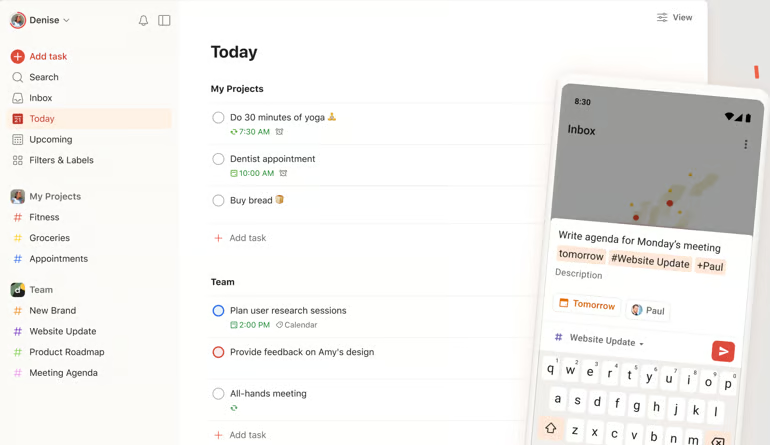
Todoist keeps project planning simple with task lists that are quick to create and easy to organize. Quick Add and Ramble let me type or speak a task in natural language, while Todoist identifies details such as the due date, label, or priority from the request. For example, I can type something like “Team meeting every Monday at 10 AM” or “Submit invoice next Friday,” and Todoist automatically schedules the task with the correct due date and recurrence settings.
When dealing with larger tasks, sections and subtasks breaks them into smaller checklist items without needing a board to set up first. For recurring work, Todoist supports repeat due dates for tasks such as weekly reports or routine reviews. The Today view focuses on immediate priorities, while Upcoming shows what is scheduled for the days ahead. You can also use labels and filters to separate personal work from team assignments. Reminders provide another option for time-sensitive tasks, with location-based alerts available for tasks associated with a specific place.
For larger teams, Todoist has limited configurations once work becomes more complex. It lacks built-in time tracking and task dependencies, which limits its use for projects where activities must follow a specific sequence. I recommend ClickUp if you want straightforward checklists but also need native time tracking and task relationships.
Todoist pricing
- Beginner: — Includes 5 personal projects, task reminders, flexible list and board layouts, three filter views
- Pro: $5/user/month — Adds calendar layout, task duration, custom task reminders, 150 filter views
- Business: $8/user/month — Adds shared team workspace, activity logs, shared templates
Key features
- Automatically repeating tasks adapt to your routines so you can stay consistent without having to reset deadlines manually.
- Habit tracking tools sync with other apps to reinforce positive routines and make your progress more sustainable.
- Smart reminders trigger based on your location, prompting you to tackle tasks when and where you need to.
| Pros | Cons |
|---|---|
| Free plan is more than enough for basic use | No real-time collaboration tools |
| Simple to use, even with its comprehensive set of features | Limited configuration options |
| Sync feature works consistently across devices | Lacks native time tracking |
For more information, read our full Todoist review.
ClickUp: Best customizable planner

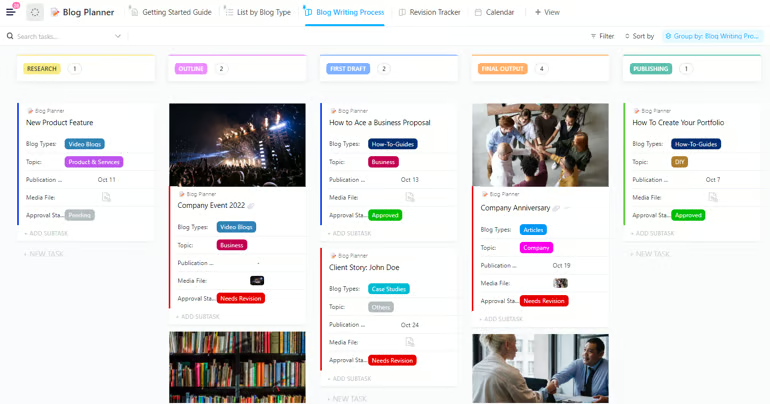
ClickUp’s Planner combines calendar scheduling and task management in one view, and it is available on every plan. I can switch between day, four-day, or week views, hide weekends, and choose a custom start day or week-number display. These options make it easier to adjust the calendar based on your specific workdays rather than a fixed default.
I can choose the default event length, change how time blocks appear, connect multiple calendars, and select which calendar should be used by default.
Working hours can also be set so AI Time-Blocking only suggests open slots within those limits. The Planner Sidebar organizes tasks into Priorities, Assigned to Me, Today & Overdue, and Backlog. while each section can be collapsed, filtered, or searched on its own.
The main limitation is that ClickUp focuses on scheduling and calendar display. It does not provide the same level of workflow control as board-level automations or custom statuses. If I need more control over conditional workflows across projects, I would consider monday.com, which supports customizable automation rules across boards.
ClickUp pricing
- Free Forever: — Includes unlimited tasks, multiple task views (list, board), basic task statuses, task comments, mentions
- Unlimited: $7/user/month — Adds Gantt charts, time tracking, custom fields, resource management
- Business: $12/user/month — Adds sprint points, advanced automation, workload management, time tracking, task dependencies
- Enterprise: Custom pricing — Adds advanced permissions, custom roles, enterprise-scale task management controls
Key features
- Start and stop timers from any device, switch between tasks easily, and log time manually by date or range when needed.
- Get a clear view of your workload by sorting, filtering, and grouping tasks in ways that best match how you work.
- Set goals for specific tasks or projects and watch your progress update automatically as you move closer to completion.
| Pros | Cons |
|---|---|
| Create tasks while offline | Modern, streamlined interfaceMay require manual refresh to see updates instantly |
| Detailed task tracking | Feature-heavy interface can feel overwhelming at first |
| Modern, streamlined interface | Extensive customization comes with a learning curve |
For more information, read our full ClickUp review.
Notion: Best for flexible task planning

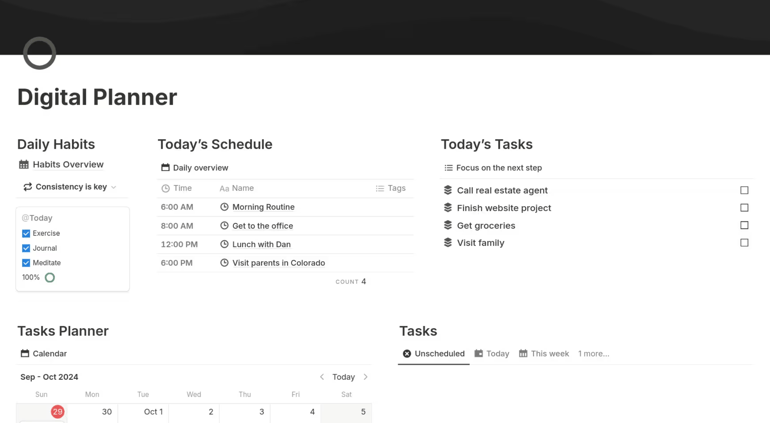
Notion approaches task planning as something you configure around your own process. You can start with one of three built-in templates: a simple to-do list, a projects-and-tasks setup, or a sprint-based option for engineering teams. From there, projects and tasks live in separate but related databases, which lets you manage detailed assignments while still connecting each task to the larger project it supports.
Most of the flexibility comes from database views and properties. The same task database can appear as a table, board, timeline, calendar, list, or gallery, so you can work with the format you prefer without duplicating data. You can also create custom properties, such as a RICE scoring formula for prioritization, or add a synced GitHub relation that brings engineering work into the same tracker.
The main drawback is setup time. Teams need someone to configure the databases, properties, and views, then maintain them as processes change. If I want more task planning features ready from the start, I would choose Asana, which includes timeline and workload views without requiring custom database design.
Notion pricing
- Free: Includes databases (subtasks, dependencies, custom properties), Notion Calendar, 7-day page history, basic forms
- Plus: $10/user/month — Adds unlimited collaborative blocks, unlimited file uploads, 30-day page history, unlimited charts
- Business: $20/user/month — Adds AI features, database permissions, private teamspaces, 90-day page history, SAML SSO
- Enterprise: Custom pricing — Adds user provisioning (SCIM), advanced security and controls, audit logs, unlimited page history
Key features
- Easily save any web page to Notion and convert it into tasks or notes you can act on later.
- View deadlines and timelines next to your calendar events to stay focused and avoid surprises.
- Automatically block busy times across all your synced calendars to protect your availability.
| Pros | Cons |
|---|---|
| Highly customizable boards | Key features like time tracking rely on templates |
| Vast library of templates from the Notion user community | Customization may take time to align with your workflow |
| Embed functionality makes integration easier | Item control and navigation can be tricky on iPad devices |
For more information, read our full Notion review.
monday work management: Best for visual planning

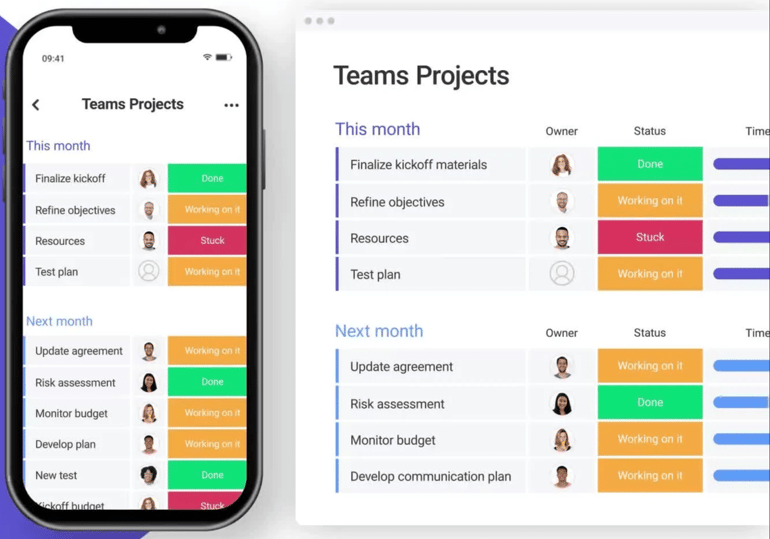
monday.com works especially well for visual planning because it organizes work through color-coded boards, status labels, charts, and drag-and-drop workflows that make project tracking easier to understand at a glance. Instead of digging through long task lists, I can quickly see deadlines and team workloads from a highly interactive dashboard.
Multiple board views display project work from different perspectives. I can use a Gantt chart to review schedules and dependencies, then switch to a Kanban board for a quick view of task progress and status. Since a single board supports up to 100 views, each layout draws from the same underlying data.
For quicker customization, monday’s AI assistant, Sidekick, creates project views from a plain-language request. Once I decide which views I use most often, I can easily pin them to the top of the board for easier access. This becomes especially useful on projects where different stakeholders rely on different ways of reviewing the same work.
View permissions are more restrictive on lower-priced plans. View locking is limited to Pro and Enterprise, so users with editing rights on Basic or Standard can modify filters and other view settings. Notion provides page-level view and edit permissions on every plan, including Free, which may suit users who want to restrict changes to shared project pages without upgrading.
monday pricing
- Free: Up to 2 users — Includes 3 boards, task tracking, basic column types
- Basic: $9/user/month — Adds unlimited boards and items, unlimited viewers, dashboard, file storage
- Standard: $12/user/month — Adds timeline and Gantt views, calendar view, basic automation, integrations
- Pro: $19/user/month — Adds time tracking, private boards for task control, advanced automation limits, formula columns
- Enterprise: Custom pricing — Adds advanced permissions, enterprise-scale task dashboards, audit logs, higher automation and integration limits
Key features
- Organize complex projects by creating custom groups and filtering by priority, status, or any field that fits your workflow.
- Start your projects faster with AI-generated task lists and phase recommendations based on your goals.
- Add widgets like charts and timelines to visualize your data and keep progress at the forefront.
| Pros | Cons |
|---|---|
| Hundreds of templates to choose from | Mobile app offers less flexibility than the desktop version |
| Visually appealing interface makes navigation smoother | Time tracking and formulas unlock at the third tier |
| Customizable automated workflows | Per-seat pricing model can be confusing |
For more information, read our full monday.com review.
Wrike: Best for AI-assisted task planning

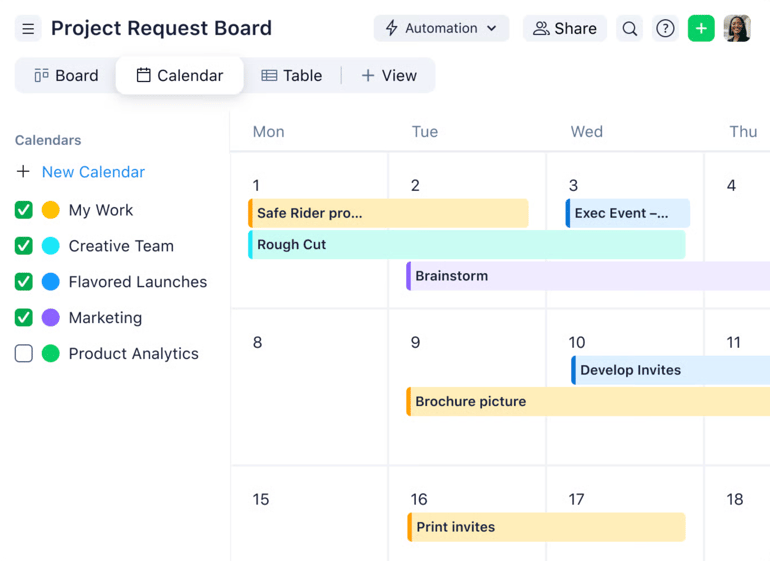
Wrike works well for tech-savvy users that want AI support during daily planning, particularly when they need to capture tasks without opening the full app. On iOS, Siri can create a task by name or open a user’s to-do list through voice commands. Teams can also create custom Wrike shortcuts for other frequently used actions.
Once the task enters Wrike, Inbox collects updates such as task assignments, with notifications remaining available for four weeks. The mobile AI assistant works within this feed by prioritizing urgent items and drafting context-aware replies. Users can then review and send the suggested response without opening the work item. Notification controls are more limited, however, since most alerts cannot be disabled except for optional predecessor and subtask reminders.
Siri integration itself has a limited scope. Wrike supports two native voice commands on iOS, while additional actions depend on generic shortcuts, and voice support is limited to English. ClickUp provides a more extensive mobile AI experience because users can give open-ended natural-language instructions to create or update tasks without relying on a fixed command set or a single supported language.
Wrike pricing
- Free: Unlimited users — Includes task management, folder hierarchy, board/table view, custom views
- Team: $10/user/month — Adds Gantt charts, dashboards, basic AI features
- Business: $25/user/month — Adds resource management, AI agents, forms, workflow automation
- Pinnacle: Custom pricing — Adds budgeting, advanced security
- Apex: Custom pricing — Adds bi-directional integrations, Wrike Sync, enterprise-scale automations with Wrike Integrate
Key features
- Customize your workspace with familiar terminology that fits your processes, and hide fields or items that don’t apply.
- Quickly turn rough notes into subtasks with built-in automation that organizes your thoughts into actionable steps.
- Compare planned versus actual costs in real time to stay within budget and avoid financial surprises.
| Pros | Cons |
|---|---|
| Robust reporting functionality | Many integrations require a monthly fee |
| Approval features for client-facing projects | Templates aren’t easily accessible or intuitive to find |
| Flexible when building board views | Initial setup requires effort to configure properly |
For more information, read our full Wrike review.
Smartsheet: Best for budget planning

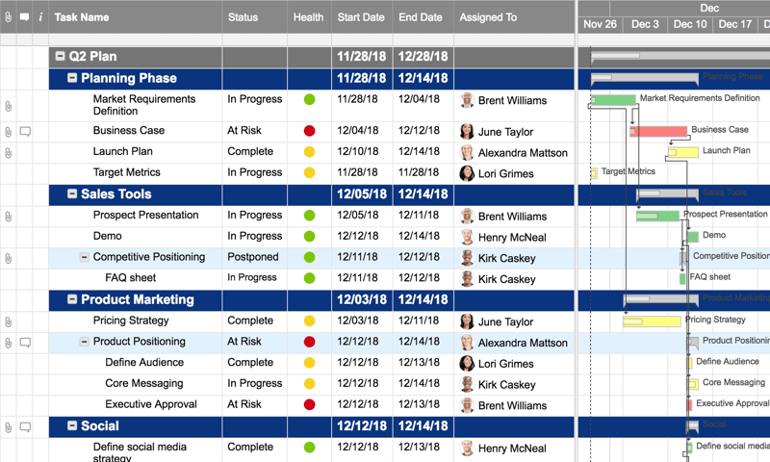
Smartsheet works well for teams that want project planning and budget calculations in the same spreadsheet-style environment. Budget owners can use familiar formulas such as SUM to calculate totals or IF to compare spending against a threshold, with the same cell-reference syntax used elsewhere in the sheet.
For more formal budget management, Project Settings supports three budget types. Time budgets measure labor in hours or days, while fee budgets calculate labor costs from hours worked and individual billing rates. Expense budgets cover non-labor costs such as travel or outside vendors, with suggested costs that a Resourcing Administrator can accept or adjust.
These budgeting capabilities require Resource Management, which is a paid add-on, and only users with Resourcing Administrator permissions can configure them. Without the add-on, teams do not get a dedicated budget module within Smartsheet. ClickUp, on the other hand, includes formula custom fields that can handle calculations such as flagging projects that exceed a budget threshold. These fields are available on all paid plans without requiring a separate purchase or admin permissions.
Smartsheet pricing
- Pro: $9/user/month — Includes rich formulas, Gantt/board/calendar views, unlimited sheets and reports
- Business: $19/user/month — Adds timeline view, workload tracking, unlimited automations
- Enterprise: Custom pricing — Adds scenario planning, AI formulas and charts, project portfolios
- Advanced Work Management: Custom pricing — Adds Control Center for portfolio scaling, Dynamic View for granular sharing, Data Shuttle sync
Key features
- Stay connected on the go with real-time access to sheets, reports, and dashboards from your phone or tablet.
- Add context to your work by uploading photos, tagging your location, or scanning barcodes from the field.
- Keep everything organized by attaching files to specific rows or entire sheets for easy reference.
| Pros | Cons |
|---|---|
| Rich formula and functions | No free plan available |
| Supports editing within a report | Features may feel excessive for simple task management |
| Advanced features support complex workflows | Setup requires some upfront configuration |
For more information, read our full Smartsheet review.
Jira: Best for sprint planning

Jira works well for Scrum teams that handle sprint planning directly from the backlog. During planning, teams can estimate stories, adjust sprint scope, and review velocity before they commit to the next cycle, all within the same backlog view.
Backlog refinement is straightforward because items can be reordered through drag-and-drop, while quick filters help surface work with specific attributes. Story points are the default estimation method, although teams can switch to ideal hours or use another approach. On the Scrum board, swimlanes separate work by epic or assignee, and unfinished items return to the backlog automatically when the sprint closes.
The main limitation appears when several Scrum teams need a shared capacity view. Jira’s native velocity chart is limited to one board, so it tracks one team’s story points from sprint to sprint. Combining several boards requires Advanced Roadmaps, which is available only on Premium and Enterprise. Alternatively, Smartsheet offers workload tracking on its Business plan and can consolidate assignments across sheets where the feature is enabled.
Jira pricing
- Free: Up to 10 users — Includes unlimited tasks, board/backlog/timeline views, reporting dashboards
- Standard: $9.05/user/month — Adds user roles, guest access, and AI features
- Premium: $18.30/user/month — Adds cross-team roadmaps, dependencies, custom issue hierarchy, and unlimited storage
- Enterprise: Contact sales — Adds unlimited automation rule runs, up to 150 sites, and analytics
Key features
- Keep tasks in a streamlined list view where you can update, sort, and reprioritize instantly with in-line editing.
- Structure work into different levels (Epics, Stories, and Subtasks) to provide clarity for the team to track and complete tasks efficiently.
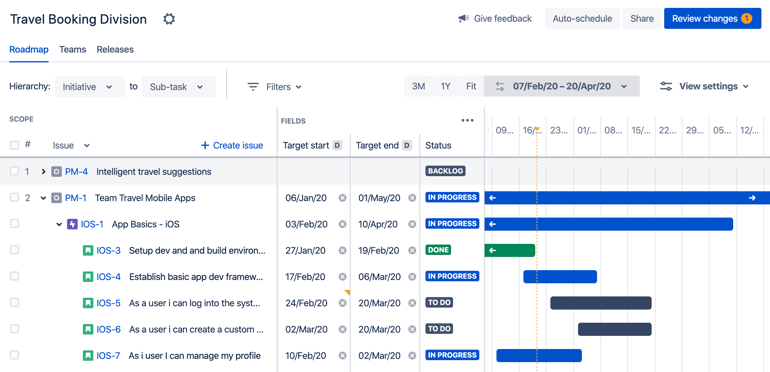
- Visualize timelines in Jira’s calendar view to align teams and stay on top of every deadline.
- Track timing, duration, and dependencies within a project or across multiple initiatives to keep everything on schedule.
| Pros | Cons |
|---|---|
| Powerful issue and bug tracking | Setup can be time-consuming for users with basic planning needs |
| Different work levels for efficient task prioritization | Technical jargon across features adds to the learning curve |
| Integrates with thousands of business apps | Primarily designed for development teams |
For more information, read our full Jira software review.
How I evaluated the best digital planners
Here are the key criteria I used to evaluate digital planners and identify the platforms that deliver the best mix of value, productivity features, and usability.
Pricing (15%): I reviewed each planner’s pricing structure, including free plans, entry-level subscriptions, annual discounts, and volume pricing options. I gave higher scores to platforms that offered affordable plans without limiting essential productivity features.
General features (25%): I evaluated the core tools most users expect from a digital planner, such as calendar integration, task management, reminders, notes, and CRM connectivity. Platforms earned higher scores when these features were proven useful in daily workflows.
Advanced features (20%): I assessed advanced capabilities like habit tracking, goal setting, time blocking, templates, customization, and data syncing. I prioritized planners that included productivity-focused extras without locking every advanced feature behind premium tiers.
Support (15%): I reviewed customer support quality by looking at support availability, response times, and access to help channels. I also considered community forums, tutorials, webinars, and knowledge bases that make it easier to learn the platform and troubleshoot issues.
Ease of use (10%): I tested how easy each planner was to set up and use across desktop and mobile devices. Higher scores went to platforms with intuitive navigation, simple onboarding, and a manageable learning curve for new users.
Expert score (15%): My expert score combined hands-on testing with value for money, third-party reviews, and overall usability. This final rating reflects how well each digital planner performs for productivity, long-term use, and business needs.
How to choose the best digital planner
The best digital planner and organizers depends on how you plan, what you’re managing, and how you prefer to stay organized. Before you dive in, read through the following list of key features to consider as you compare tools.
- Budget: Most solutions offer free digital planners with basic tools, and paid plans typically start around $5 per user per month. Annual subscriptions usually come with a discount, so it’s worth comparing long-term pricing.
- Templates and layouts: Look for built-in templates or flexible layouts that match how you like to organize your work, whether it’s kanban boards, lists, or calendar views. The right layout saves setup time and makes your planner feel intuitive from the start.
- Features: Some tools go beyond basic to-do lists by offering goal setting, habit tracking, calendar integration, and even reminders or notes. If you’re juggling personal routines alongside work tasks, you’ll find these extra features extremely useful.
- Interface: A clean, easy-to-navigate interface influences how often you are going to use the planner. Mobile and desktop syncing is also key if you need access on the go. This is a key factor if you’re looking for the best digital planners for iPad use.
- Customization: The best planners let you tailor categories, tags, views, and even workflows to match your personal or team preferences. If you can tweak the setup to mirror how you think, you’ll get more value from the tool.
Before committing, take full advantage of any free trials or free digital planners to explore how each tool fits into your daily routine. Once you’ve gained firsthand experience with the options on this list, it becomes much easier to tell which planner works best for your style and workload.
FAQs
What is the best digital planner?
The best digital planner depends on the type of tasks you manage, whether you’re organizing daily to-dos, complex projects, or collaborative team workflows. For simple task lists, try Todoist; for full customization, go with Notion; and for detailed project management, explore ClickUp.
Which app is best for digital planning?
The best app for digital planning depends on your work style. Apps like monday.com and Smartsheet work well for visual planners, while Jira is great for structured task organization, especially for agile teams, and Notion excels at combining notes and tasks in one space.
Are digital planners any good?
Yes, digital planners are highly effective for improving organization, tracking goals, and syncing tasks across devices, especially when you choose a tool that matches your workflow.