
Carl Pei-led Nothing has carved out an unusual space for itself in the Android world. The company’s smartphones not just look different with those signature transparent backs and Glyph lights, but they’re distinct to use, too. The software experience, part of Nothing OS, follows the same idea. You get a clean interface like Samsung and Google’s Pixel, but what makes it unique are the quirks. This combination has made Nothing massively popular in a short time. It attracts those who probably don’t want their phone to look like every other slab in the market. Now, the company is refreshing that experience with Nothing OS 5.0, based on Android 17.
There’s a lot to unpack here, from changes to the interface, personalisation, and Glyph controls to widgets, and Nothing’s growing collection of AI-powered Essential tools. I tried the Nothing OS 5.0 beta on the flagship Nothing Phone 3 to see how these changes actually come together in everyday use.
Nothing OS 5.0 General Performance Impressions
I’ve been trying out the latest Android 17-based operating system in beta for a couple of days now. It doesn’t, however, feel like a complete departure from the previous version. I think this is a good thing. Nothing has kept the same overall look and feel that has been appreciated by the masses, myself included. On top of that, they’ve made small changes all over the place to make the experience more cohesive.
If you look closely, you will see the brand has paid attention to typeface, icons, animations, Quick Settings, the lock screen, and even how the signature Glyph features are accessed.
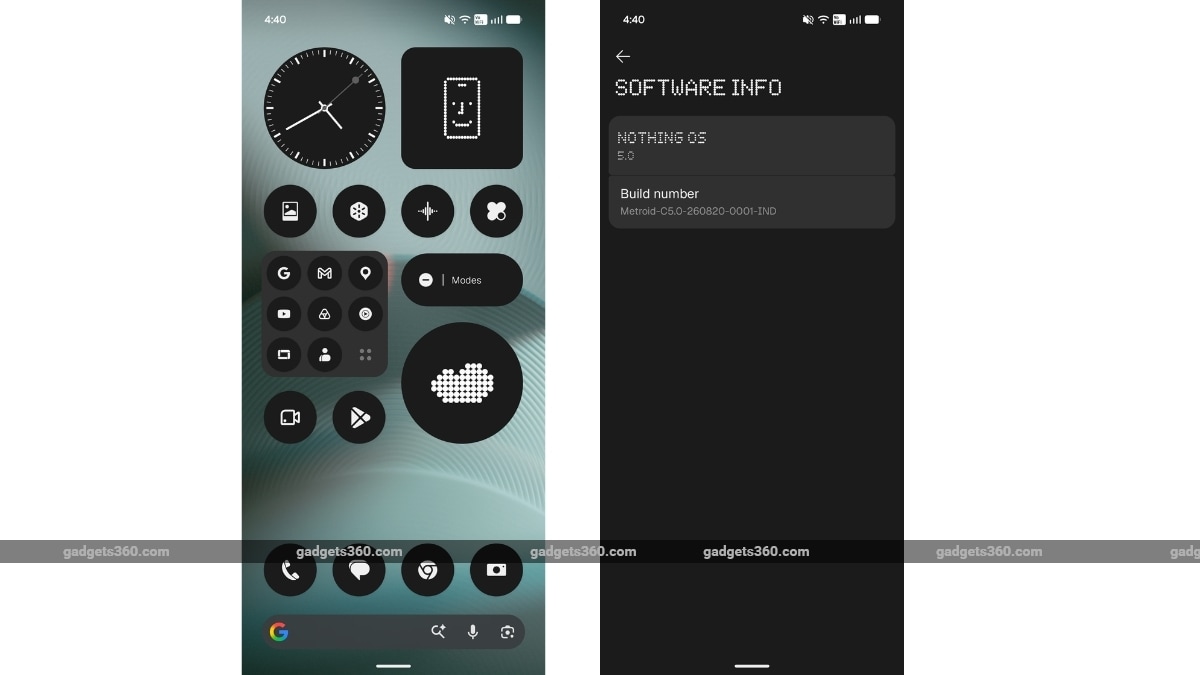
The phone also feels pleasantly fluid during normal use, despite being in beta. I rapidly scrolled through menus and jumped between apps; both of which felt responsive. Animations are also top-notch without trying too hard to show off. Nothing says it has improved app launches, touch response, multitasking, and background app management, and the changes are hard to quantify in a few days of use.
There are plenty of smaller additions, too. Bluetooth controls have been simplified in Quick Settings, multiple apps and widgets can be moved together on the home screen, and the Glyph Interface now has its own dedicated app instead of being tucked away in Settings. The brand also added new widgets such as Away Time, Collector, and Glyph Timer, but I think only some are useful.
Nothing OS 5.0: 3 Features We Liked
With the general performance out of the way, let us dive into the top three additions that I liked the most. After using the beta, these three stood out to me the most, along with one that I don’t see myself using much.
1. Away Time
I quite like digital wellbeing features on smartphones, so it isn’t a surprise that one of my favourite features in the initial days was Away Time. The name is self-explanatory: it shows how long you have stayed away from your phone by tracking your longest breaks and showing you a view of your weekly habits.
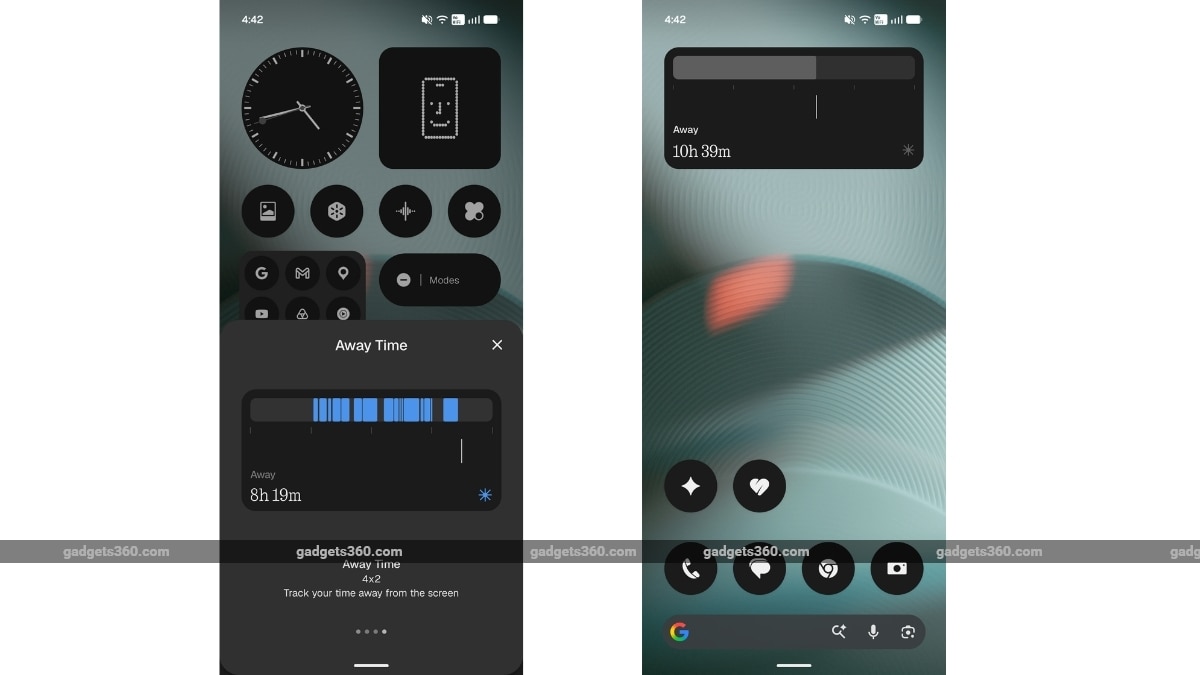
Most wellbeing features nowadays often simply tell you how much time you have spent staring at your phone. That can make you feel mildly guilty. Nothing’s approach here is quite likeable. Instead of throwing a warning in your face telling you that you’ve spent four hours doomscrolling Instagram, you get a gentle nudge that you managed to stay away from your phone for, say, two hours on a Sunday afternoon.
I really liked the widget as well, which, once again, fits the brand’s overall design language and doesn’t take up much space on the home screen.
2. Dedicated Glyph App
The Glyph Interface has always been one of the more unusual parts of Nothing’s phones, and one I liked most. However, I admit that getting to all its settings hasn’t always been the most straightforward experience. Enter Nothing OS 5.0, which brings a dedicated Glyph app (finally!)
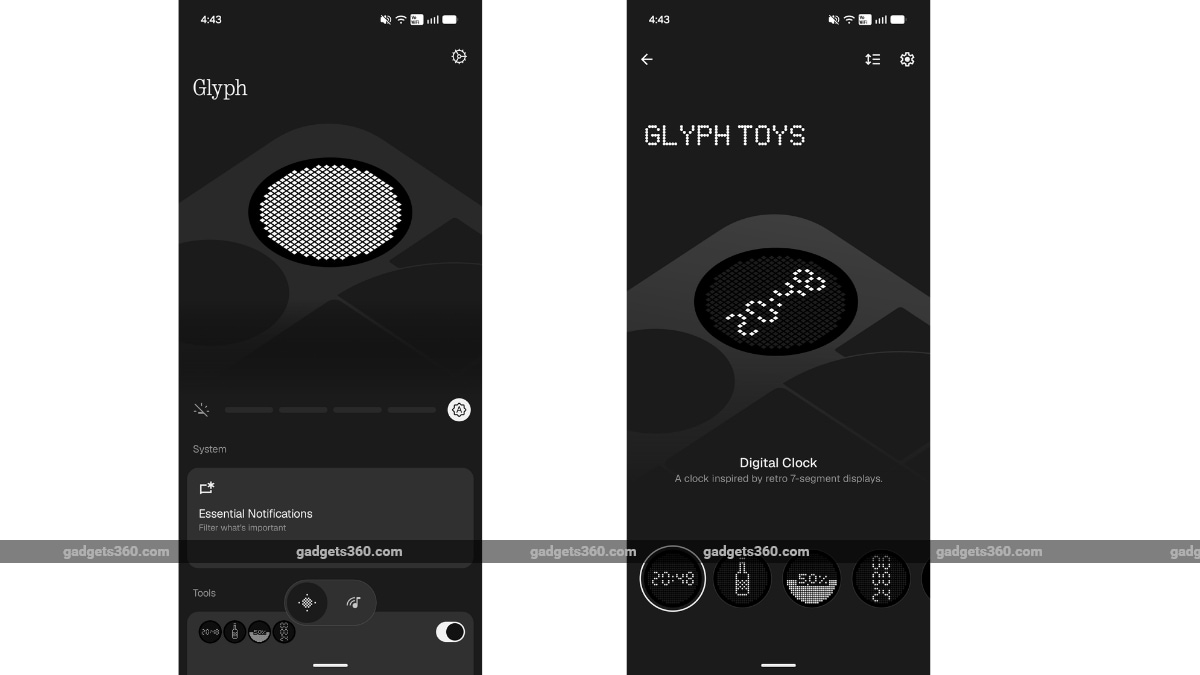
You can use the app to check out and tweak the different lighting controls, sounds, ringtones, and schedules in one place. This eliminates the need to hunt through different parts of Settings just to find the one you wanted to change 10 minutes ago.
I know it is not a feature that will make you go “wow” after installing the update. But once you start using it, the difference becomes obvious. In fact, after a few days of use, I started wondering why it wasn’t like this from the beginning.
3. More Useful Essential AI
The latest update also goes deeper into AI. Essential Space gets Smart Collections. This feature can automatically organise related captures. Meanwhile, Essential Voice has been improved to provide faster processing and better-formatted transcriptions. Soon, you will also be able to access the Essential Apps Builder, which can create simple apps directly on the phone based on what you describe in natural language.
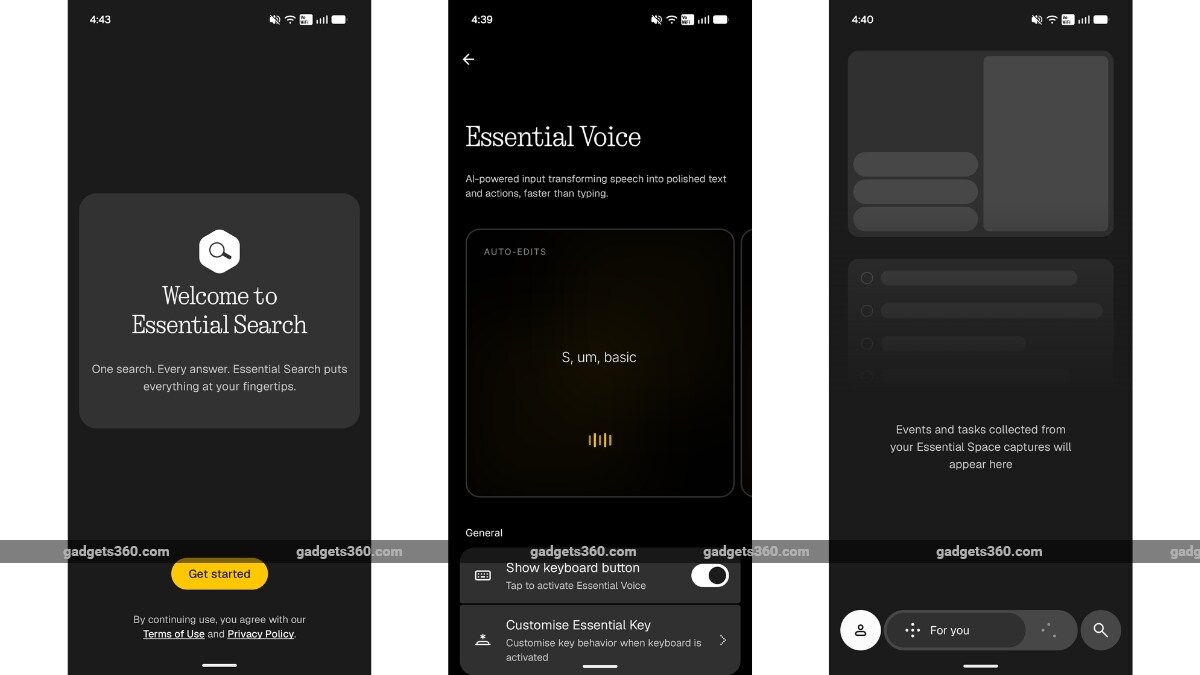
Among the improvements, the Essential Voice was the most appreciable. While I haven’t used it much, it feels faster than the Android 16 iteration. Transcriptions also appear more cleaner. Like the microphone and camera indicator on iOS, Nothing OS 5.0 adds an AI processing indicator that appears in the status bar when AI features are processing data. I think this is a really nice touch.
The most interesting one, however, is the Essential Apps Builder. With this feature, you can essentially vibe-code an app, and it will be on your smartphone in a jiffy. No need to enrol and pay for a developer account anymore. Google’s loss, but definitely a big gain for Nothing users. It provides a fun glimpse at where Nothing wants its AI features to go.
Nothing OS 5.0: 1 Feature We Could Do Without
Nothing has generally been good at introducing features you can immediately understand and want to use, with the aforementioned Essential Apps Builder being one example. TCollector, however, left me scratching my head.
I get the idea, and it is simple enough. You can pick a photo or take one with the camera, and Nothing OS cuts out the main subject. That cutout is then added to the Collector widget, where you can see all your little creations together on the home or lock screen. And… that’s pretty much it.
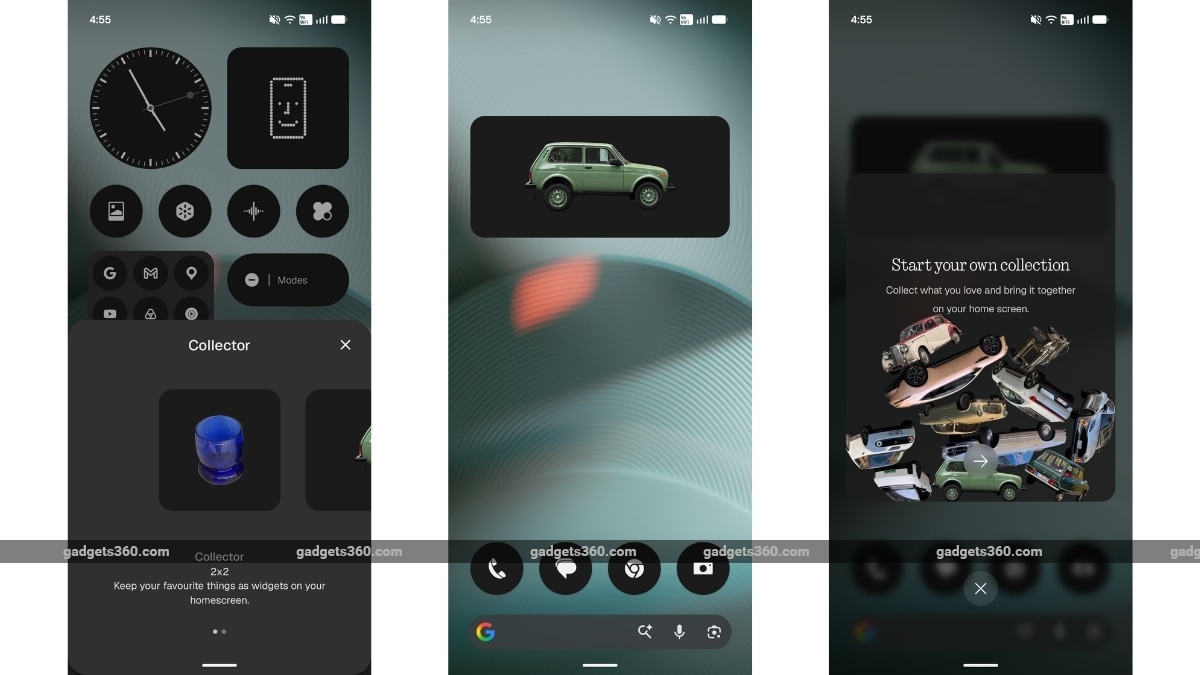
I can imagine someone having fun with it for a few minutes, especially if you like turning random photos of friends, pets, or objects into little stickers. But what would I actually do with these cutouts after making them? Would I keep coming back to the widget? Probably not.
I ended up trying Collector mainly because it was a new feature in the Nothing OS 5.0 beta. Outside of that, I don’t plan to use it regularly.