
Using the same Apple Account on multiple iPhones can seem convenient, especially if you want access to the same photos, contacts, calendars, notes, files, messages, purchases, and device settings. But that convenience can quickly create privacy, security, and communication problems if the second iPhone belongs to someone else or is used for a different purpose.
For most people, the safer option is to use separate Apple Accounts and share only what needs to be shared through Family Sharing, shared iCloud folders, shared calendars, shared photo libraries, or app-specific collaboration tools. If you do decide to use one Apple Account on multiple iPhones, review the settings below carefully before relying on the second device.
Use Family Sharing instead of sharing one Apple Account
The biggest mistake is assuming that two people need to use the same Apple Account to share apps, subscriptions, storage, or location information. In most cases, they do not.
Family Sharing is usually the better choice for families or trusted groups that want to share Apple services without combining personal data. With Family Sharing, each person keeps their own Apple Account while sharing access to services such as iCloud+, Apple Music, Apple TV, purchases, location sharing, and parental controls.
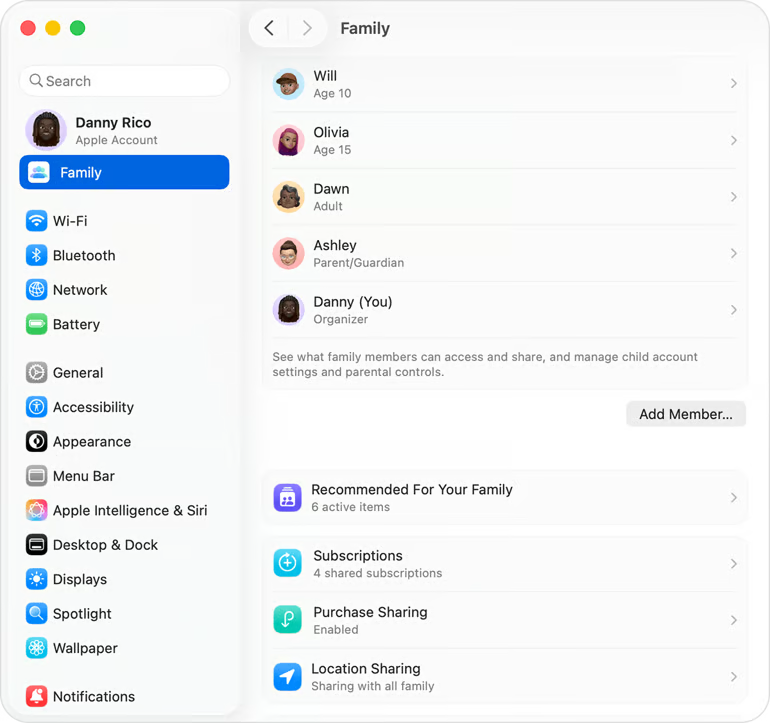
This matters because one shared Apple Account can also share things you may not want another person to see, including:
- Messages and FaceTime contact points.
- Photos and videos.
- Contacts and calendars.
- Notes and reminders.
- iCloud Drive files.
- Safari data.
- App data.
Other settings, such as Find My locations, Wallet information, and account recovery options, can also become more complicated when multiple people use the same account.
If the second iPhone is being used by a partner, child, assistant, employee, or contractor, create or use a separate Apple Account instead. Then share only the specific services, files, calendars, folders, or subscriptions that the person needs.
Mistake 1: Letting personal data sync to the wrong iPhone
When you sign in to a second iPhone with the same Apple Account, iCloud may begin syncing account data and app data depending on the settings enabled on that device. That can make information from the first phone appear on the second phone.
This may include contacts, calendars, reminders, notes, photos, files, Safari data, passwords, app data, and more. For a second personal iPhone, that may be exactly what you want. For a phone used by someone else, it can create serious privacy issues.
To review iCloud syncing on an iPhone:
- Open Settings.
- Tap your name.
- Tap iCloud.
- Review the apps and services using iCloud.
- Tap Show All if needed.
- Turn syncing on or off for individual apps and services.
Pay special attention to Photos, iCloud Drive, Contacts, Calendars, Notes, Reminders, Mail, Safari, Health, Passwords, and any third-party apps that store sensitive information in iCloud.
Mistake 2: Sending or receiving Messages from the wrong number
Messages can become confusing when two iPhones use the same Apple Account. A message meant for one phone number may appear on another iPhone, or a reply may be sent from the wrong phone number or email address.
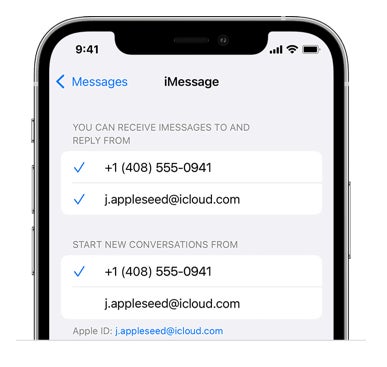
This is especially risky if the second phone belongs to another person or is used for work. A personal message could appear on a business device, or a business reply could be sent from a personal number.
To check Messages settings:
- Open Settings.
- Tap Apps.
- Tap Messages.
- Tap Send & Receive.
- Review the phone numbers and email addresses that can send and receive iMessages.
- Select only the numbers and addresses that should be active on that iPhone.
- Check the Start New Conversations From setting.
Repeat this process on both iPhones. Do not assume the settings are correct just because the first phone was already configured.
Mistake 3: Receiving FaceTime calls on the wrong device
FaceTime can create similar problems. If the same Apple Account is used on multiple iPhones, FaceTime calls may ring on both devices or use the wrong phone number or email address.
To check FaceTime settings:
- Open Settings.
- Tap Apps.
- Tap FaceTime.
- Review the phone numbers and email addresses listed under You Can Be Reached By FaceTime At.
- Select only the entries that should apply to that device.
- Review the caller ID setting if available.
If the second iPhone is not meant to receive FaceTime calls for the primary account holder, disable the extra contact points or turn off FaceTime on that device.
Mistake 4: Forgetting that iCloud Photos may sync automatically
Photos are one of the most sensitive categories of data that can appear on another iPhone. If iCloud Photos is enabled on both devices, photos and videos may sync across both iPhones.
That can be useful for someone who owns two personal iPhones. It is a problem if the second device is used by another person or is intended for a limited purpose.
To review iCloud Photos:
- Open Settings.
- Tap your name.
- Tap iCloud.
- Tap Photos.
- Confirm whether Sync this iPhone is turned on or off.
If you only need to share selected photos, use a shared album or iCloud Shared Photo Library instead of syncing the entire photo library to another device.
Mistake 5: Sharing files, notes, and app data unintentionally
iCloud can sync much more than photos. Notes, iCloud Drive files, Pages documents, Numbers spreadsheets, Keynote presentations, third-party app files, and other app data may become available on the second iPhone.
This is one of the main reasons sharing one Apple Account is risky in work situations. A second phone could gain access to files, drafts, private notes, financial documents, or app data that were never meant to be shared.
Before signing in to a second iPhone, decide what the device actually needs. If the goal is collaboration, use targeted sharing instead of account sharing. For example:
- Share a specific iCloud Drive folder.
- Share a calendar.
- Share an individual note.
- Collaborate in Pages, Numbers, or Keynote.
- Use Microsoft 365, Google Workspace, Slack, or another business collaboration tool.
- Use Apple Business Manager or managed accounts for workplace devices.
A shared account is rarely the cleanest way to collaborate.
Mistake 6: Overlooking Find My and location privacy
Find My is helpful when you need to locate a lost device, but it can also reveal location information across devices connected to the same Apple Account.
If two iPhones are signed in with the same Apple Account, the user on one device may be able to see the location of the other. This may be acceptable for someone managing their own devices. It is not appropriate for many work, family, or shared-device scenarios unless everyone understands and agrees to the setup.
To review Find My settings:
- Open Settings.
- Tap your name.
- Tap Find My.
- Review Find My iPhone, Find My network, and Send Last Location.
- Review any location-sharing settings.
If you want to share location with a family member, use Family Sharing or location sharing with separate Apple Accounts rather than giving another person access to your full Apple Account.
Mistake 7: Ignoring Wallet and Apple Pay settings
Wallet and Apple Pay settings should always be reviewed before using the same Apple Account on another iPhone. Payment cards, passes, Apple Cash, transit cards, and purchase authorization settings can create financial and privacy concerns if they appear on a device used by someone else.
To review Wallet and Apple Pay:
- Open Settings.
- Tap Wallet & Apple Pay.
- Review payment cards, Apple Cash, transaction defaults, shipping address, email, and phone settings.
- Remove any cards or passes that should not be available on that device.
Do not assume that Apple Pay is harmless just because purchases require Face ID, Touch ID, or a passcode. If the second iPhone is used by someone else, the better approach is for that person to use their own Apple Account and payment methods.
Mistake 8: Weakening Apple Account security
Using one Apple Account on multiple iPhones expands the number of devices tied to that account. That can affect security prompts, trusted devices, verification codes, and account recovery.
Before adding another iPhone, review the account’s security settings:
- Use two-factor authentication.
- Use a strong device passcode.
- Enable Face ID or Touch ID when available.
- Review trusted phone numbers and devices.
- Remove old or unknown devices.
- Set up account recovery options.
- Keep all devices updated.
This is especially important if the second iPhone is older, shared, used by someone else, or not physically controlled by the account owner.
Mistake 9: Misunderstanding Advanced Data Protection
Advanced Data Protection for iCloud can add stronger protection for many categories of iCloud data, including iCloud Backup, Photos, Notes, and more. But it also increases the importance of account recovery planning.
If Advanced Data Protection is enabled, Apple cannot recover end-to-end encrypted data for you. You must be able to recover access using your device passcode, recovery contact, or recovery key.
Before adding a second iPhone to an Apple Account with Advanced Data Protection enabled, confirm:
- The device is updated and compatible.
- The device has a strong passcode.
- Recovery contacts or a recovery key are set up correctly.
- The person using the second device understands the security implications.
- You still control the trusted devices tied to the account.
With that said, Advanced Data Protection is powerful, but it is not a substitute for good account hygiene. It works best when every trusted device is secure and under the account owner’s control.
Mistake 10: Using one Apple Account for business devices
Sharing one Apple Account across business devices is usually a bad idea. It can mix personal and company data, expose private information, create offboarding problems, and make it harder to separate work access from personal services.
For workplace scenarios, consider alternatives such as:
- Apple Business Manager.
- Managed Apple Accounts.
- Mobile device management software.
- Separate Apple Accounts for each employee.
- App-level collaboration tools.
- Shared mailboxes, calendars, or cloud folders.
- Role-based access controls in business apps.
If an assistant or employee needs access to files, calendars, email, or documents, give them access through the appropriate business tool. Do not give them your Apple Account credentials or sign their iPhone in to your Apple Account unless there is a specific, temporary, and well-understood reason.
When using one Apple Account on multiple iPhones makes sense
There are still situations where one Apple Account on multiple iPhones may make sense. For example, one person may own a personal iPhone and a backup iPhone, or may temporarily move between two personal devices.
Even then, review the setup carefully. Make sure each phone has the right Messages, FaceTime, iCloud, Find My, Wallet, and security settings. Also confirm that both devices are physically secure and that no one else has access to them.
A shared Apple Account is most appropriate when the same person controls both iPhones. It becomes much riskier when two different people use the devices.
Quick review before adding a second iPhone
Before signing in to a second iPhone with the same Apple Account, check these key areas:
- Messages and FaceTime settings.
- iCloud Photos and iCloud Drive syncing.
- Contacts, calendars, and notes.
- Find My location settings.
- Wallet and Apple Pay information.
- Trusted devices and account recovery options.
- Device passcodes and software updates.
A few minutes of review can prevent privacy, security, and communication problems later.
Frequently asked questions
Should a business use one Apple Account for multiple iPhones?
Generally, no. Businesses should use separate Apple Accounts, managed accounts, mobile device management software, Apple Business Manager, or app-level access controls. Sharing one Apple Account across work devices can mix personal and business data and make security, offboarding, and access management harder.
What should I check before adding a second iPhone to my Apple Account?
Review Messages, FaceTime, iCloud Photos, iCloud Drive, Contacts, Calendars, Notes, Find My, Wallet, Apple Pay, trusted devices, recovery options, passcodes, and software updates. These settings determine what data appears on the second iPhone and how much account access that device has.
Will my messages show up on another iPhone using the same Apple Account?
They can. If Messages is enabled for the same phone numbers or email addresses on both iPhones, iMessages may appear on both devices. To prevent this, review Settings > Apps > Messages > Send & Receive on each iPhone and select only the numbers and email addresses that should be active on that device.
Will my photos sync to another iPhone using the same Apple Account?
They can if iCloud Photos is enabled on both devices. To check this setting, open Settings, tap your name, select iCloud, then tap Photos. If you only want to share selected photos, use a shared album or iCloud Shared Photo Library instead of syncing the full photo library.
Bottom line: Plan carefully before sharing an Apple Account
Using the same Apple Account on multiple iPhones can save time, but it can also expose messages, photos, files, locations, payment details, and account recovery controls. The safest default is simple: use one Apple Account per person, and share only the content or services that need to be shared.
If you need shared purchases, subscriptions, iCloud storage, location sharing, or parental controls, start with Family Sharing. If you need to collaborate on work, use business tools or managed accounts. If you truly need to use one Apple Account on two iPhones, review every major Apple Account, iCloud, Messages, FaceTime, Find My, Wallet, and security setting before handing over or relying on the second device.